Choosing a memory card for a mirrorless camera comes down to three things: the physical format the slot accepts, how much capacity your shoots need, and a speed rating that matches your recording mode. Get those three right and the card just works. Get the speed wrong and you get a full buffer, dropped frames, or a recording that stops halfway through a take.
The whole decision takes about ten minutes once you have the manual open. Most of that time is spent checking what your specific body supports, because two cameras with the same sensor can have completely different card slots.
Here is what to gather, how to narrow the options, and what to do with the card once it arrives.
Table of Contents
- What You Need
- Step-by-Step
- How to Choose the Right Memory Card for Your Camera
- Step 1: Check the Camera’s Supported Card Format
- Step 2: Choose Enough Capacity for Your Files
- Step 3: Match the Speed Class to Your Shooting
- Step 4: Consider Reliability and Accessories
- Step 5: Format and Test the Card Before You Rely On It
- Common Mistakes
- Frequently Asked Questions
- Does a memory card affect photo quality?
- Do all SD cards fit any mirrorless camera?
- What SD card do I need for 4K video?
- Is UHS-II worth it for my camera?
- Can I use a microSD card with an adapter?
- Why do memory cards get corrupted?
- Conclusion
What You Need
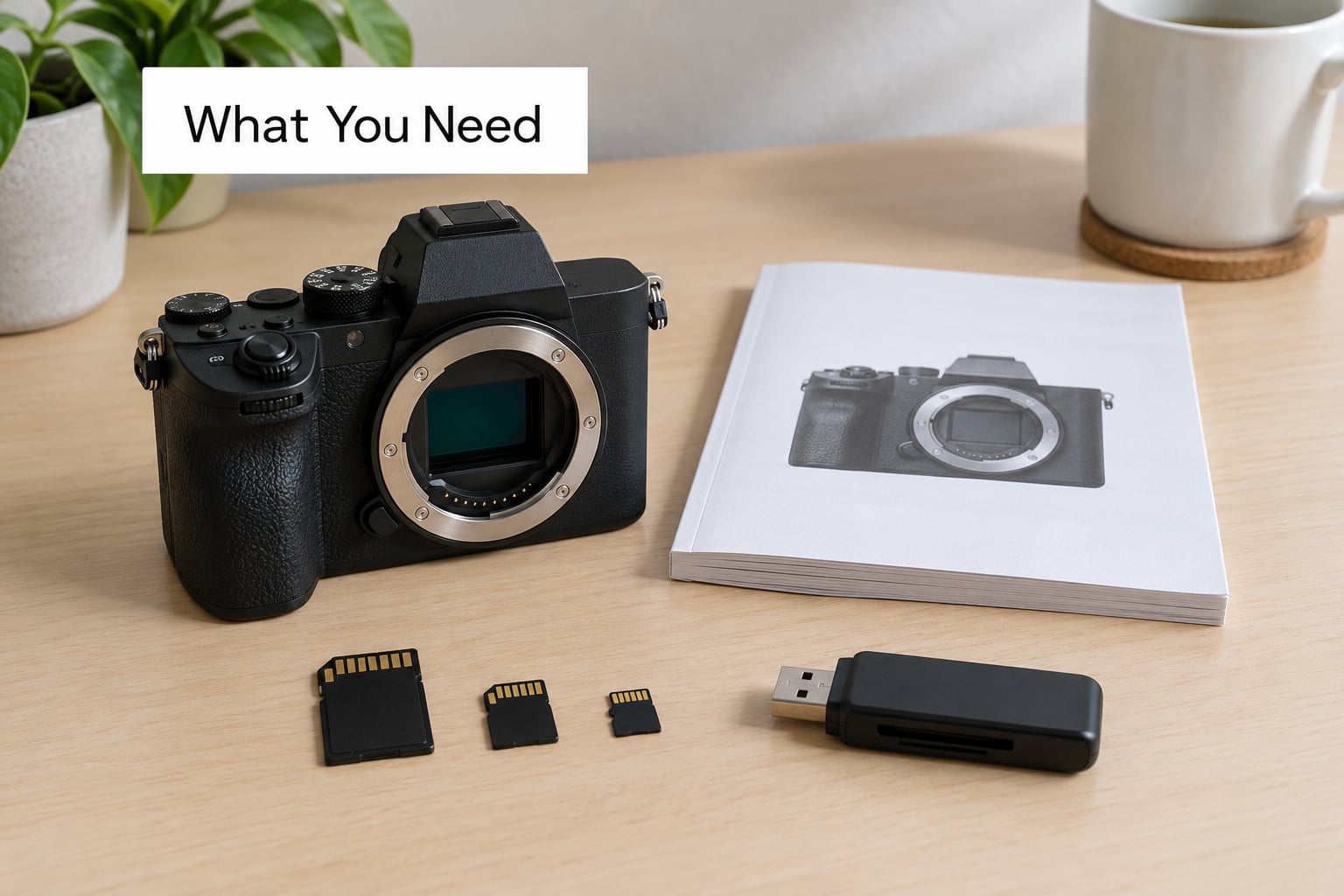
You do not need much to start, but you do need accurate information rather than a guess from a listing page.
- The camera manual or the manufacturer’s spec page. Look for the memory card compatibility section. It lists the physical formats, the capacity ceiling, and usually the highest speed class the camera can use.
- Your recording mode. Still photos, RAW stills, burst at 10 or 20 frames per second, or 4K video at 60 frames per second are four very different demands on a card.
- The card you are using now. Read the label and note its capacity and rating. That tells you whether you actually run short or whether you are fine.
- A card reader that matches your ports. A fast card piped into a slow reader still transfers slowly, and readers are a common source of interrupted transfers.
One more useful detail: how you get files off the card. If you copy them to a laptop, to an external SSD, or straight to a network drive, you will want that second device to be as reliable as the second copy matters to you.
Step-by-Step
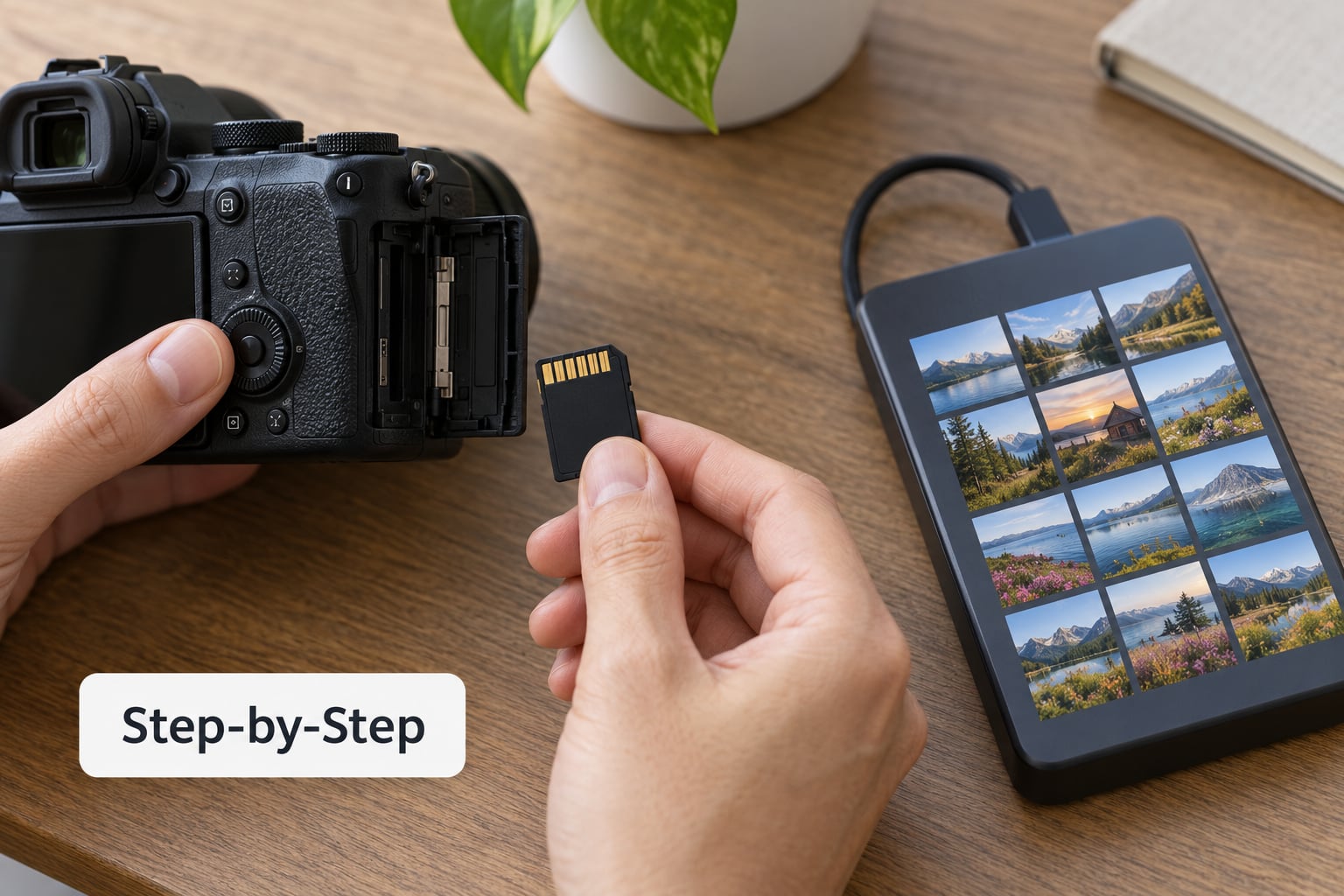
How to Choose the Right Memory Card for Your Camera
Pick a card the camera physically supports, with enough capacity for a full shooting day, and a speed class your recording mode can actually use. Everything else is preference. A slower card in a body that only shoots single frames will produce identical pictures, and a faster card in a body with a single slow slot will do nothing at all.
Step 1: Check the Camera’s Supported Card Format
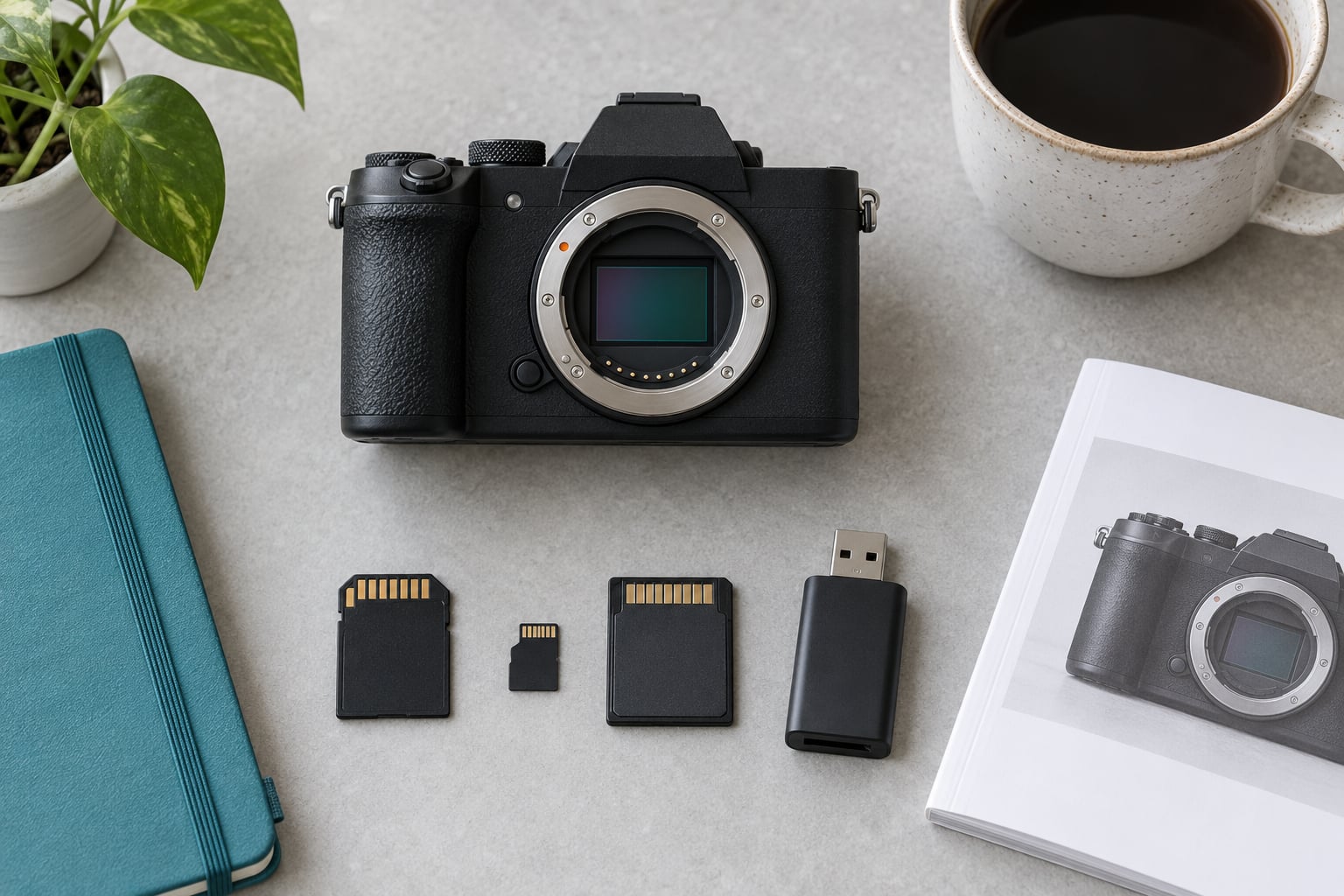
Start with the slot, not the card. Most mirrorless cameras use a full-size SD card, some take microSD, and a few accept both through an adapter. Check the manual because the shapes look similar and the labels are easy to misread at a glance.
An adapter is a passive plastic shell. It contains no wiring, no controller, and no conversion logic, so a microSD card in a full-size SD slot performs at exactly the same speed as a native full-size card of the same rating. It also blocks one of the camera’s contacts, which is why dual-slot bodies that take full-size SD will not accept a microSD adapter there.
Note the capacity ceiling while you have the manual open. Some older or entry-level bodies stop accepting cards above 128GB, and a card that is rejected at the slot is a card you cannot use at all.
Step 2: Choose Enough Capacity for Your Files
Capacity is a range, not a size, and the name printed on the card tells you which range you are buying.
| Card type | Capacity range | File system | Typical camera use |
|---|---|---|---|
| SD | Up to 2GB | FAT12 or FAT16 | Obsolete. No current mirrorless body accepts these. |
| SDHC | 4GB to 32GB | FAT32 | Basic stills cameras and older video modes |
| SDXC | 64GB to 2TB | exFAT | The normal choice for modern mirrorless bodies |
| SDUC | Over 2TB | exFAT | Rare. Check that your body explicitly lists support. |
For orientation, a typical 24-megapixel RAW file runs around 50 to 70MB, and a JPEG of the same frame is roughly a fifth of that. A day of casual shooting on a single card of 128GB is plenty. A wedding with two card slots and constant burst is a different calculation, and so is a day of 4K clips.
Buy one step above what your busiest day needs rather than one step below. Running a card completely full is when write errors and corrupted files become most likely.
Step 3: Match the Speed Class to Your Shooting
Two different speed markings appear on every modern card. The letter U with a Roman numeral inside is the UHS Speed Class, which tells you the bus generation. The V number is the Video Speed Class, which is a guaranteed sustained write speed in megabytes per second. The V rating is the one to shop by, because it is the speed the card promises to hold, not the burst it can manage for half a second.
| Rating | Guaranteed sustained write | What it suits |
|---|---|---|
| Class 10 or U1 | 10MB/s | Single-frame stills, Full HD video |
| U3 | 30MB/s | Short bursts, 4K at 24 or 30fps |
| V30 | 30MB/s | 4K at 30fps, moderate burst |
| V60 | 60MB/s | 4K at 60fps, 6K, longer bursts |
| V90 | 90MB/s | 8K, high bitrate video, deep burst buffers |
The bus interface is the second half of the speed picture. UHS-I cards have the first row of contacts and top out around 104MB/s. UHS-II cards add a second row, reach about 312MB/s, and are identifiable by the notch-shaped connector on the card edge. If your camera has a UHS-II slot, a UHS-I card still works, just at UHS-I speeds.
Reading speeds printed on the front of a card, sometimes 200MB/s or more, are maximum sequential read figures. They affect how fast you can copy files to your computer. They say almost nothing about how the card behaves inside your camera. Forum threads about cards that feel slow on import and shoot fine are exactly this, and it is not a fault.
Newer standards keep coming. UHS-III roughly doubles UHS-II to about 624MB/s, and SD Express reaches roughly 985MB/s over PCIe and NVMe. Very few mirrorless cameras support either today, so treat them as future-facing rather than something to buy for.
Step 4: Consider Reliability and Accessories
Brand matters less than you might think, but counterfeit cards are a real problem on marketplace sellers, and photographers on photography forums describe returning cards that report twice their labelled capacity.
Look for a limited lifetime warranty from a manufacturer you recognise, sold through an authorised retailer or the manufacturer’s own storefront. That warranty is the practical counterfeit check, because fakes cannot honour it.
Also decide on a reader now. A USB 3.2 reader is the current baseline for transferring files off the card, and a USB-C reader is what you need if that is the only port on your laptop. Skip the cheapest adapters; interrupted transfers through a poor reader are a known cause of files arriving incomplete.
If your camera has two slots, use them. Filling both during a paid shoot means a write failure on one card still leaves the other holding frames, and some bodies can spread recording across both at once. Check the manual for whether your body offers relay, backup, or simultaneous recording modes.
Step 5: Format and Test the Card Before You Rely On It
Format new cards inside the camera, using the camera’s own menu, before the first real shoot. This writes a file structure the camera recognises and clears any leftover data from a previous card. Formatting on a computer can leave a structure the camera does not expect, and the reverse causes problems when you insert the card in a computer.
Then run a short test.
- Shoot a few dozen RAW or JPEG frames at the burst rate you plan to use.
- Record a short clip at your intended resolution and frame rate.
- Copy everything to two separate drives and confirm the file count matches what the camera recorded.
- Open a handful of the copied video clips to check they play back without errors.
Do this once per card, not once per camera. It takes five minutes and it is the step that catches a failing card before it fails on the day.
Common Mistakes
Assuming an adapter makes a card faster. An adapter changes the shape, never the speed. Check the slot’s own specification instead.
Buying too little capacity. Repeatedly reformatting and swapping cards mid-shoot is avoidable, and a full card is when write errors cluster. Size for your busiest day, then add headroom.
Buying a format the slot cannot read. A 256GB card in a body with a 32GB limit will not error usefully. Check the compatibility page before you buy, not after.
Shopping on the printed read speed. Big read numbers are marketing-friendly and mostly about card-to-computer transfers. The V rating is the number that predicts whether your camera stops recording.
Ignoring sustained write needs on video. 8K and high-bitrate modes write continuously for minutes at a time. A card that peaks fast and throttles produces a clip that ends early. V60 or V90 covers this.
Never formatting or testing a new card. Format in camera, run a short test shoot, verify the copies, and keep a second set of files until you have done it.
Frequently Asked Questions
Does a memory card affect photo quality?
No. A card stores the finished file; it does not process the image. Quality changes come from the lens, sensor, and settings. What a card does affect is whether you get the frame at all. A card that cannot sustain the write speed fills the camera buffer, and you lose frames in a burst or get a truncated video clip.
Do all SD cards fit any mirrorless camera?
No. Physical size and capacity ceiling both have to match. Most mirrorless bodies take full-size SD cards, some take microSD, and some accept both through an adapter. Many entry-level bodies also cap capacity at 128GB. The camera manual’s compatibility section states the formats and the maximum supported capacity, and checking it takes a minute.
What SD card do I need for 4K video?
For 4K at 24 or 30fps, a V30 or U3 card at 30MB/s sustained write is enough. For 4K at 60fps or 6K recording, go to V60 at 60MB/s. For 8K or high-bitrate modes, V90 at 90MB/s gives the headroom to avoid dropped frames. Match the card to the highest resolution and frame rate you actually use.
Is UHS-II worth it for my camera?
Only if your camera has a UHS-II slot. In a UHS-II slot, a UHS-II card clears the buffer faster during long bursts and shortens transfer times to your computer. In a UHS-I slot, a UHS-II card fits and works at UHS-I speed, so you pay for headroom you never get. Check the slot in the manual, not the marketing on the camera box.
Can I use a microSD card with an adapter?
Yes, in most bodies that accept full-size SD. An adapter is a passive shell with no electronics, so a microSD card performs at its full rating inside it. The exception is a dual-slot camera using two full-size SD cards: adapters block the extra contact row, and that slot will not accept one.
Why do memory cards get corrupted?
Most often the card was removed while the camera was still writing, or the card was formatted on a computer rather than in the camera. Interrupted transfers through a low-quality reader cause it too, as does using a counterfeit card that reports more capacity than it has. Removing cards only when the camera says it is safe, formatting in camera, and buying from an authorised retailer cover nearly all of these.
Conclusion
Start with the manual. Confirm the physical format and the capacity ceiling, then size storage for your busiest shooting day with headroom above it.
Next, pick the speed class that matches your highest recording mode: V30 for stills and 4K at 30fps, V60 for 60fps and 6K, V90 for 8K and deep bursts. Buy from a seller who honours the manufacturer warranty, and pick a reader that matches your ports.
When the card arrives, format it in the camera and run a short test shoot before you need it. That last ten minutes is what turns an unfamiliar card into one you trust.