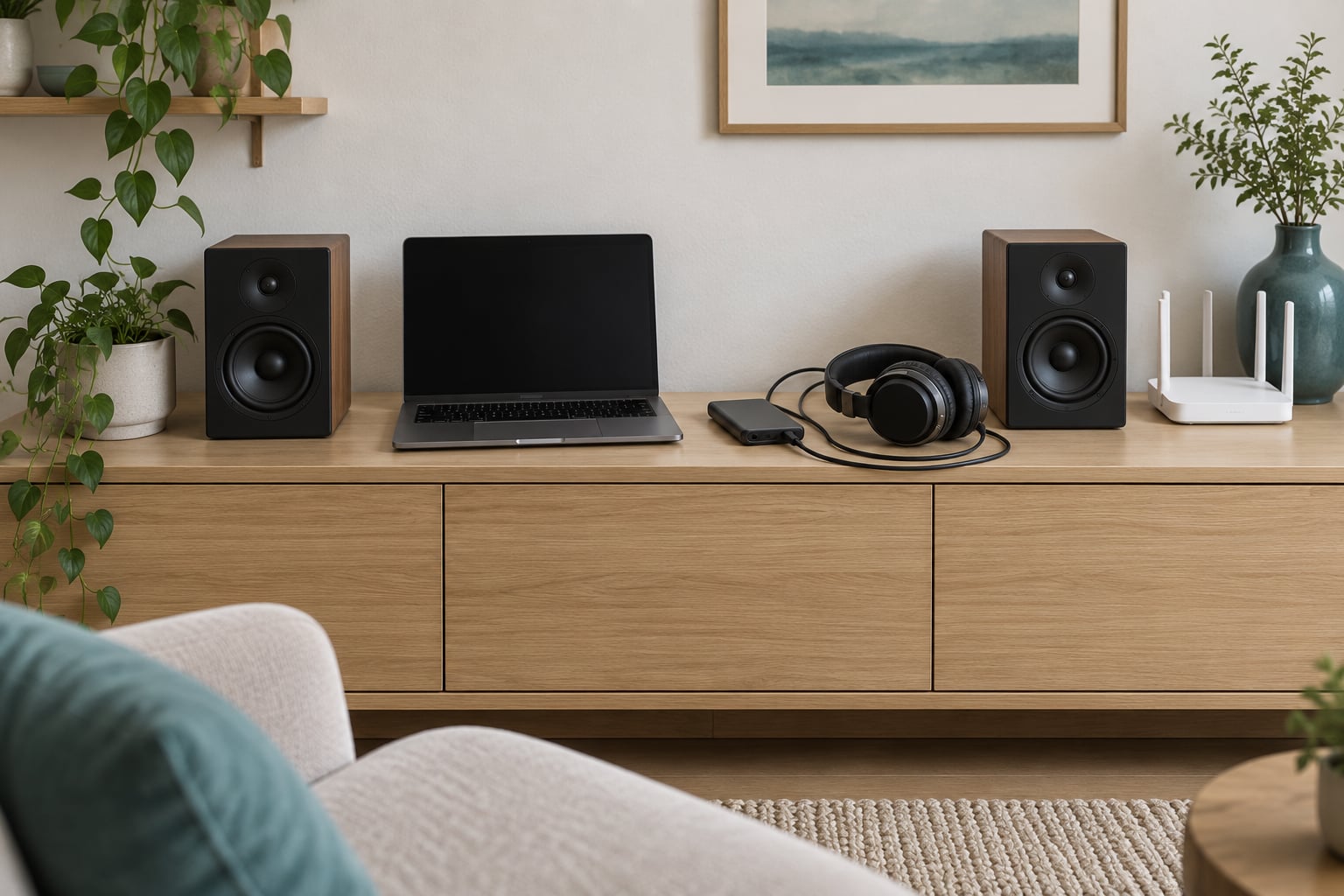
To stream music in high resolution at home, you need three things: a service that delivers lossless or hi-res audio, a player with a DAC that accepts the sample rate, and a connection that does not compress the signal on the way there. Turn the app’s quality setting to Hi-Res or Lossless, point playback at the right output, then check the sample rate readout to confirm you are getting what you paid for. Set aside about 20 minutes for the first pass.
Most people never get there, and the reason is almost never the subscription. It is the last 30 feet between the app and the speakers, where a Bluetooth codec or a resampling operating system quietly undoes the whole thing.
Here is the whole process in order:
- Pick a service that actually streams lossless or hi-res, not just a compressed stream with a nicer name.
- Switch that app’s audio quality setting to the highest option the hardware can play.
- Connect the player to the DAC or network streamer with the least lossy route you have available.
- Match the source resolution to what the DAC accepts, and turn off operating-system processing.
- Verify the active output device and sample rate before you change any hardware.
I will walk through each of those in detail below, including why your hi-res option is sometimes greyed out and what to do about it.
Table of Contents
- What You Need to Stream Music in High Resolution at Home
- The four things you actually need
- Optional upgrades that usually come later
- Reference resolutions at a glance
- Step-by-Step
- Choose a high-resolution music service
- How to stream music in high resolution at home
- Connect the player with the least lossy practical route
- Set the streaming app and operating system correctly
- In the streaming apps
- In the operating systems
- Match the source resolution to the playback chain
- Verify that the high-resolution path is working
- Common Mistakes
- Tips for the Best Results
- Frequently Asked Questions
- Is high-resolution streaming audibly better than CD quality?
- What sample rate and bit depth should I choose for home listening?
- Do I need faster internet to stream high-resolution music?
- Is USB, Wi-Fi, or Bluetooth the best way to stream at home?
- How can I find out which resolution my music service is actually playing?
- Conclusion
What You Need to Stream Music in High Resolution at Home
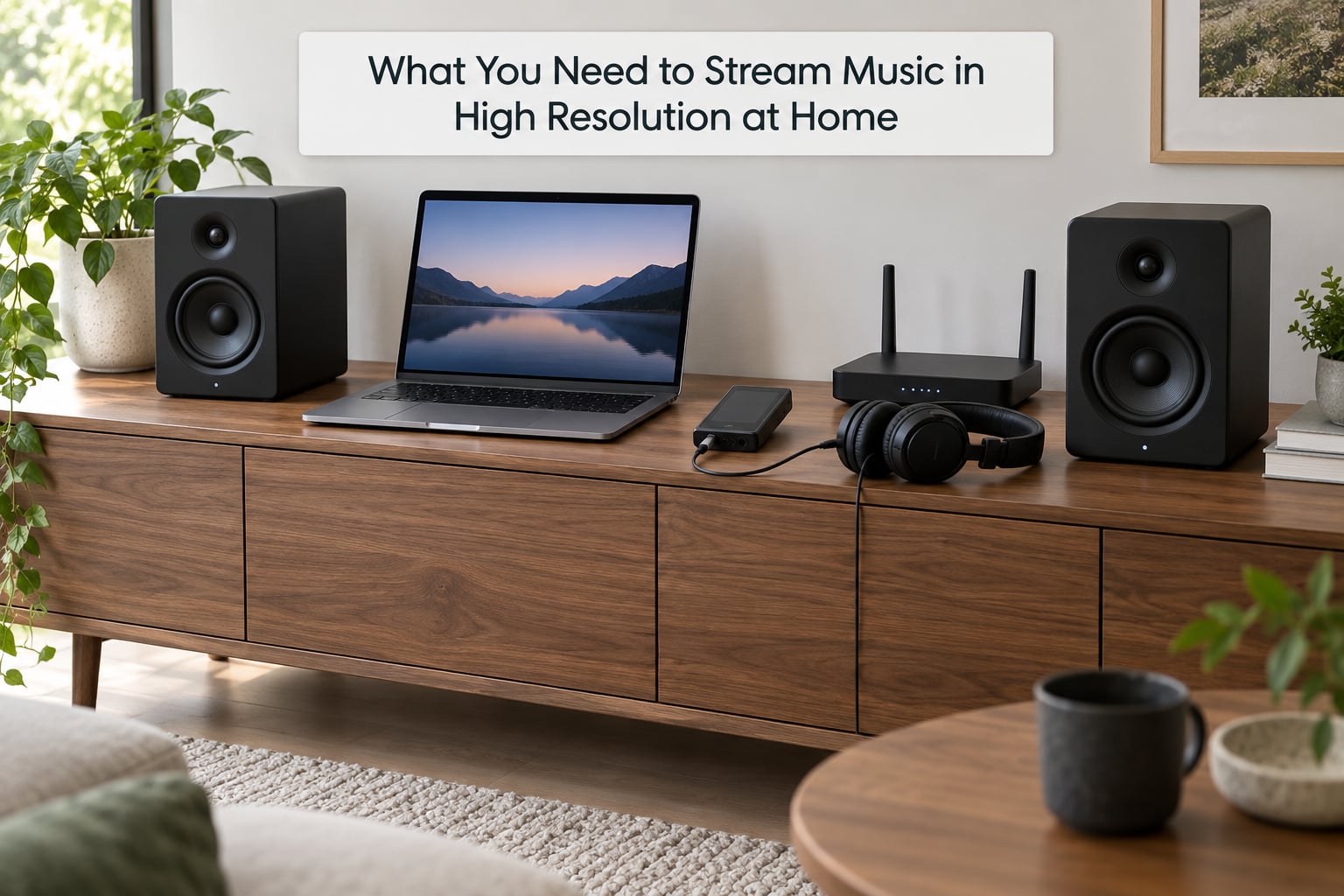
The required list is short: a hi-res-capable subscription, a source device running the service’s app, a DAC or network streamer with a digital input, and speakers or headphones that can be driven properly. Everything else is an optional upgrade, and skipping those upgrades is not the problem most listeners think it is.
The four things you actually need
A service that delivers the format. Lossless means the file is compressed without discarding musical data. Hi-res means the file carries more data than CD quality, typically 24-bit at 88.2 kHz or above. A service can offer both, one, or neither, so this is the first thing to confirm.
A playback device and a DAC. The DAC is the part that turns digital audio into analogue signal. Any recent laptop, desktop, streamer or AV receiver has one built in. A separate USB DAC or a network streamer matters when the built-in one is noisy, capped at a low sample rate, or has no digital input to speak of.
A clean connection. USB, HDMI, optical and Ethernet all carry a digital signal intact. Bluetooth does not, which is why Bluetooth is the wrong tool for this particular job.
A room and speakers that reveal the difference. This is where honesty helps. Forum consensus across r/audiophile and similar communities is consistent: speakers, placement and room treatment change what you hear far more than a bitrate does. Upgrading 16/44.1 to 24/192 through a pair of small desktop speakers buys you nothing you can identify.
Optional upgrades that usually come later
A dedicated network streamer removes the phone or computer from the chain and gives you a stable, always-on source with a native app and a front-panel sample rate display. Headphone amplification matters if you use open-back or high-impedance headphones. A local FLAC library on a NAS gives you a reference-quality source free of a subscription and of network jitter. None of those are needed to start, and all of them are easier to judge once the basics work.
Reference resolutions at a glance
The table below gives the four formats that matter for home listening, with approximate data rates for uncompressed PCM and a typical compressed size for a three-minute track. File sizes vary with material, so treat these as planning figures rather than guarantees.
| Resolution | Nickname | Uncompressed data rate | Approx. FLAC size, 3-minute track |
|---|---|---|---|
| 16-bit / 44.1 kHz | CD quality | 1.41 Mbps | 18-20 MB |
| 24-bit / 44.1 kHz | Hi-res bit depth only | 2.12 Mbps | 28-32 MB |
| 24-bit / 48 kHz | Video standard | 2.30 Mbps | 30-35 MB |
| 24-bit / 96 kHz | Double the audio band | 4.61 Mbps | 65-75 MB |
| 24-bit / 192 kHz | Quad-rate | 9.22 Mbps | 130-150 MB |
One number worth knowing: 24-bit gives roughly 144 dB of theoretical dynamic range against CD’s 96 dB. Human hearing in a normal living room rarely resolves anywhere near that, which is the honest reason hi-res beyond CD quality is subtle at best.
Step-by-Step
Choose a high-resolution music service
The services that carry true lossless or hi-res audio in the US are Apple Music, Tidal, Qobuz, Amazon Music HD and Ultra HD, and Deezer HiFi. Their ceilings are close together, so choose on catalog, app quality and offline support rather than on maximum bit depth.
| Service | Max bit depth | Max sample rate | Delivered as | Notes |
|---|---|---|---|---|
| Qobuz | 24-bit | 192 kHz | FLAC | Also offers DSD; widely recommended in hi-res forums |
| Tidal | 24-bit | 192 kHz | FLAC | Switched from MQA to FLAC in 2024 |
| Apple Music | 24-bit | 192 kHz | ALAC | Largest catalog; applies EQ and level adjustment that some listeners dislike |
| Amazon Music HD | 24-bit | 192 kHz | FLAC | Ultra HD tier adds spatial audio on top of hi-res |
| Deezer HiFi | 24-bit | 192 kHz | FLAC | Integrated more often in European hardware |
| Spotify Lossless | 24-bit | 44.1 kHz | FLAC | Launched September 2025; CD-quality bandwidth, not hi-res rate |
Two cautions. First, a label like Hi-Res, Max or HiFi describes a tier, not a guarantee that every track plays at the tier’s ceiling; a large part of any catalog is still recorded at 44.1 or 48 kHz because that is what the session was captured at. Second, Spotify’s lossless tier removes lossy compression but does not deliver hi-res sample rates, which is the distinction forum users argue about most.
On AirPlay, listeners on Apple Music and Tidal commonly report the stream being downsampled, while Qobuz and Tidal playback through the same path holds its quality. If your setup depends on casting, test this yourself with one track before you commit.
How to stream music in high resolution at home
The core workflow is four actions: sign in to your service on the correct app, set the quality option to its highest unlocked setting, start a track you know well locally, and control playback on the device that is doing the conversion.
Start with a local file. Streaming and radio routes add a layer that has nothing to do with hi-res, so remove it from the diagnosis while you set things up.
Watch for one specific trap: the output device. An app playing through your laptop’s speakers while your DAC sits connected is the single most common reason someone believes they are not getting hi-res.
Connect the player with the least lossy practical route
Use a digital connection whenever one is available. Wireless is the option to reach for only when running cable is not worth it.
| Route | Lossless | Practical ceiling | Best for |
|---|---|---|---|
| USB | Yes | 24/192 on most modern DACs | Computer or phone as source, best overall choice |
| Ethernet | Yes | 24/192 | Network streamers and multiroom systems |
| HDMI / HDMI eARC | Yes | 24/192 with a matching receiver | AV receivers, TVs, soundbars |
| Optical (Toslink) | Yes | Often capped at 24/96 | Older gear and TVs with no audio out |
| AirPlay 2 | Usually downsampled | Commonly 16/44.1 | Convenience, not fidelity |
| Bluetooth | No | Compressed by design | Earbuds and portable listening |
Bluetooth codecs re-compress an already-compressed or lossless stream before it reaches your headphones, so a 24/192 file arrives as a fraction of its original data. LDAC and aptX Lossless sit closer to the source than the older SBC codec, but none of them pass the signal through untouched, which makes them the wrong choice for critical listening at a desk.
If Bluetooth earbuds are all you listen on, the honest answer is that you cannot hear the difference, because the codec removes it before you do. At that point, spend your attention on codec support in your device and skip the rest of this guide.
Set the streaming app and operating system correctly
Every app hides the quality setting somewhere different, and menus move between releases, so check the current version when your layout looks unfamiliar. These are the paths as of 2026, for the mainstream US versions.
In the streaming apps
Apple Music on iPhone and iPad: open the app, tap Settings in the top right, scroll to Playback, tap Audio Quality, and choose Hi-Res Lossless with the ceiling set to 24-bit/192 kHz.
Apple Music on Android: open the app, tap Settings, Playback, then Audio Quality, and set the same two options. On macOS and Windows the path is Music or Apple Music > Settings > Playback > Audio Quality.
Tidal: open the app, go to Settings, then Streaming, and set Sound Quality to the hi-res option. Tidal moved off MQA to FLAC in 2024, so any tutorial built around MQA decoding describes an older setup.
Qobuz: open the app, tap Settings, Playback, then Streaming Quality, and select the highest FLAC option your hardware lists. The app only offers formats the connected device reports support for.
Spotify: Settings > Music > Audio quality, where the lossless option sits alongside the standard and very high settings. Useful as a control, since it makes the difference between compressed and uncompressed easy to hear on the same track.
In the operating systems
Windows: go to Settings > System > Sound, select your output device, open Device properties, then the Advanced tab. Set the default format to the highest rate your DAC supports, turn off audio enhancements, and enable “Allow apps to take exclusive control of this device” for bit-perfect output. Exposing this toggle for every app and re-checking the format after each one is the behaviour bit-perfect playback depends on.
macOS: open Audio MIDI Setup from Applications > Utilities, select the output device, and choose the format and sample rate you want. In Music > Settings > Playback, leave the output device at the one you configured. macOS routes cleanly by default, so fewer adjustments are needed here than on Windows.
Android: there is no global switch. Audio quality lives in the streaming app, and Bluetooth codec selection lives in Settings > Developer options > Audio, where you can pick LDAC or aptX where your hardware offers them. The same developer menu carries the USB audio offload options that can bypass some resampling.
iOS and tvOS: audio routing follows the screen or AirPlay target rather than a device list, so check that the app is sending to the intended output before changing anything else. On tvOS, receivers handle the conversion, and lip-sync delay is adjusted in the receiver or TV menu rather than the app.
Match the source resolution to the playback chain
The largest format that actually plays is set by the weakest link, not by the biggest number in any one app. Your usable ceiling is the sample rate your service can deliver, capped by what your DAC accepts, capped again by what the connection can carry.
For CD-quality files, almost any DAC will do. At 24/96 you need a DAC rated for 96 kHz, which most current hardware handles. At 24/192 you need USB Audio Class 2 support or an equivalent high-rate digital input; older optical outputs stop at 24/96, and portable Bluetooth stops far lower.
Many DACs resample everything internally to a fixed rate such as 96 or 192 kHz. That is not a defect, but it does mean the readout showing 192 kHz may reflect the DAC’s chosen output rather than the source file. The reason this matters is bit-perfect playback: when the source already matches the DAC’s rate, the signal reaches the converter untouched, and no resampling step can alter it.
Sample-rate conversion itself is not the enemy. A well-implemented converter is inaudible on most program material. Where conversion does cause problems is when it happens to a bit-perfect path unnecessarily, or when a converter is combined with a loudness normalisation setting, which changes level rather than quality and makes two services sound different for reasons that have nothing to do with resolution.
Verify that the high-resolution path is working
Confirm the path in four checks, in order, so you can see exactly where it breaks.
Check one, the output device. Look at the app’s output picker. If it names a phone speaker, a Bluetooth device or AirPlay, the signal has already left your DAC behind.
Check two, the active sample rate. On Windows, the Format dropdown in Device properties shows the rate actually in use during playback. On macOS, Audio MIDI Setup shows the same figure. Many network streamers print the incoming rate on the front panel or in the app.
Check three, the source resolution. Streaming apps display a quality or format badge on the track now playing. If the badge says 24-bit/96 kHz while the DAC reports 44.1 kHz, the app is resampling or the DAC is being fed a converted stream.
Check four, bit-perfect behaviour. On Windows, enable exclusive mode, set the format to the file’s rate, and watch for the rate to hold steady during playback. A rate that jumps when a track changes is the operating system converting.
If the four checks pass, the path is doing what you configured. If one fails, work backwards from the failure: the first check that disagrees with reality is where the problem lives.
Common Mistakes
These are the failures that come up repeatedly on hi-res forums, with the fix for each.
| Symptom | Likely cause | Fix |
|---|---|---|
| Hi-res option greyed out in the app | The connected device does not report support for the rate | Connect to a wired DAC or speaker, then reopen the quality menu |
| Sample rate stuck at 44.1 kHz | The service delivered a 44.1 kHz master, or AirPlay or Bluetooth is in the path | Play a track listed as 24-bit, stop casting, and recheck the readout |
| No sound after switching outputs | The new device became the default and its volume is at zero | Raise the level on the output device itself, not just the app |
| Playback stutter or dropouts | Wi-Fi congestion on a 2.4 GHz band | Move the device to Ethernet or a 5 GHz or 6 GHz band |
| Volume slider low, quality setting low too | Digital volume is being done in software | Set software volume to full and control level in the amplifier |
| Hi-res sounds worse than before | Lossless playback is more revealing of the recording and the room | Fix placement and room problems before blaming the format |
| Different services sound nothing alike | Loudness normalisation on one service, none on another | Match the normalisation setting across services before comparing |
The greyed-out option has four usual causes: a lossy wireless path, a device without a hi-res DAC, a track that only exists at a lower resolution, or a regional or device limit. Identifying which one applies takes about two minutes once you know to check the connection first.
Tips for the Best Results
Go wired wherever the cable allows, and put the source and the DAC on the same network segment if you use Ethernet.
Set the operating system and the DAC to the same rate as the source, so nothing has to be converted on the way in.
Keep a small library of local lossless files for critical listening, so you have one reference source that no network or service can alter.
Update the streaming apps and the DAC firmware periodically, because sample-rate support changes with revisions.
Set software volume to full and control level in the amplifier. Digital volume attenuation drops the signal and then has to push it back up downstream.
Turn off operating-system enhancements, EQ and loudness normalisation when comparing quality, and re-enable them for normal listening afterwards.
Place speakers so they are not against a wall or in a corner, and give them a little distance from the wall. Room treatment is worth more than another specification upgrade.
Frequently Asked Questions
Is high-resolution streaming audibly better than CD quality?
Mostly not, in a level-matched test. The jump from a lossy stream to CD quality is easy to hear; the jump from 16/44.1 to 24/192 of the same master is usually subtle or inaudible. 24-bit mainly buys extra headroom for mastering and editing rather than audible detail. Where hi-res helps more in practice is on a good DAC into good speakers in a treated room, where the cleaner noise floor and lack of compression artefacts become easier to place.
What sample rate and bit depth should I choose for home listening?
24-bit at 44.1 kHz or 48 kHz covers most listening with headroom to spare. Push to 24/96 if your DAC supports it and you want to match a native rate on a hi-res master. 24/192 adds bandwidth and file size for a difference few listeners can identify on a home system. Match the rate to your DAC and skip the rest, because a resampled 24/192 file gains nothing over a matching 24/48 one.
Do I need faster internet to stream high-resolution music?
Not really. An uncompressed 24/192 stream runs near 9 Mbps, and even a heavily compressed hi-res FLAC stays well under 5 Mbps, so a typical home broadband connection handles it easily with room to spare. Wired Ethernet gives the most headroom. What actually causes buffering is weak Wi-Fi signal on a congested 2.4 GHz band, which is a coverage problem rather than a speed problem.
Is USB, Wi-Fi, or Bluetooth the best way to stream at home?
USB is the best route when the source is a computer or phone, because it passes the digital signal untouched and most modern DACs handle high rates. Ethernet is the equivalent choice for network streamers and multiroom systems. Bluetooth is the wrong choice for hi-res because every codec in common use re-compresses the stream before playback, and AirPlay commonly downsamples to CD quality.
How can I find out which resolution my music service is actually playing?
Check three places. The app shows a quality or format badge on the track now playing, which tells you the resolution of the source file. Your operating system shows the rate the output device is actually running at: the Format dropdown under Windows sound device properties, or Audio MIDI Setup on macOS. Network streamers often display the incoming rate on the front panel. If those two numbers disagree, something between them is resampling.
Conclusion
Start with the software, because that is free and it is where most people are stuck. Pick a service that genuinely delivers lossless or hi-res, switch its quality setting to the highest option available, and confirm the app is playing to your DAC rather than to a speaker or a Bluetooth device.
Then check the sample rate your system reports, and match it to the source. If those numbers agree, your high-resolution streaming setup is working and there is no reason to buy anything else. If they do not, the mismatch tells you exactly which cable, which setting or which box to fix next.
Speakers, placement and the room come before any further spec upgrade. A matched source and a decent DAC feeding well-positioned speakers will outrun an expensive chain playing at CD quality over Bluetooth every time.