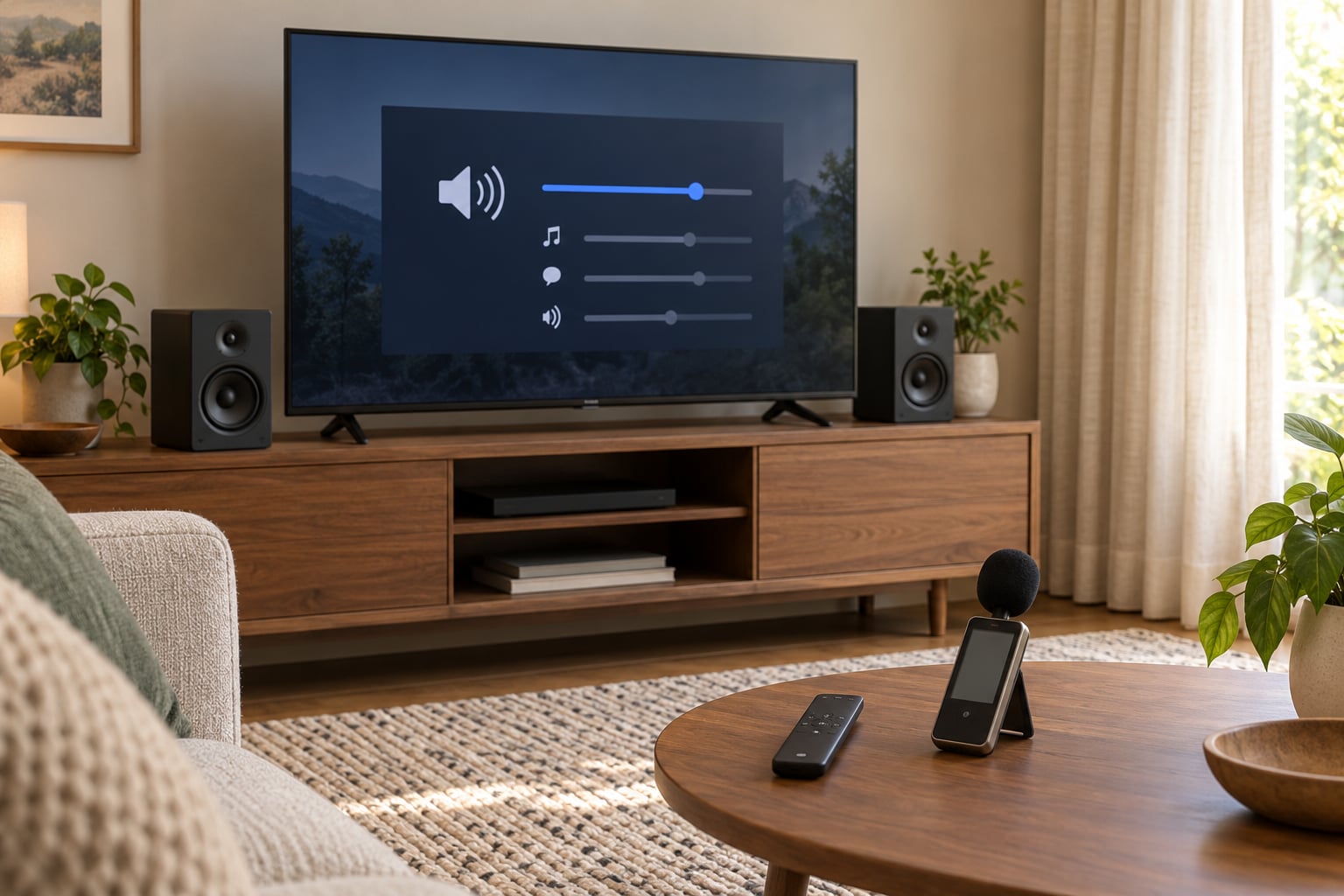
How to improve TV sound without a soundbar is a settings problem far more often than it is a hardware one. Most of the improvement comes from changes that cost nothing: switching off Eco Mode, changing the sound mode, turning on dialogue enhancement, and matching the wall-mount or stand preset to how the set is actually installed. Only after those are right does it make sense to spend money on speakers you may already own. The whole sequence takes about half an hour and needs no tools beyond your hands.
I have walked through this order on more sets than I want to admit, and the pattern holds almost every time. People assume thin flat-panel speakers are hopeless, then discover a volume cap or a mismatched installation preset was flattening the sound the whole time.
Table of Contents
- What You Need
- Step-by-Step: How to Improve TV Sound Without a Soundbar
- 1. Check the TV’s Basic Audio Output
- 2. Adjust Dialogue, Treble, and Bass
- 3. Fix Volume Mismatches and Channel Problems
- 4. Reduce Echo, Muffled Sound, and Blocked Speakers
- 5. Improve Speaker Placement and Listening Position
- 6. Try a Simple External-Speaker Upgrade
- Common Mistakes
- Frequently Asked Questions
- Why does my TV sound quiet even when the volume is turned up?
- Should I use dialogue mode or night mode when watching TV?
- Does Bluetooth add noticeable delay when connecting speakers to a TV?
- Is a soundbar the only way to get better TV speakers?
- What should I do if dialogue is clear but music and effects sound flat?
- Conclusion: Start With the Free Fixes
What You Need
Almost nothing. That is the point of this method.
- The TV remote, and access to the audio or sound menu.
- Your phone, with a sound-level meter app, so you can measure dialogue levels against a film instead of guessing.
- A soft dry cloth, for the vents and speaker grilles that collect dust.
- Optional: a 3.5mm or RCA cable, a long HDMI cable, or a small screwdriver if your TV hides its ports behind a panel.
Keep the TV’s own manual nearby. Menu names differ enough between brands that “Clear Voice” on one set is “Dialogue Enhancement” on another, and I will name them as we go.
Step-by-Step: How to Improve TV Sound Without a Soundbar
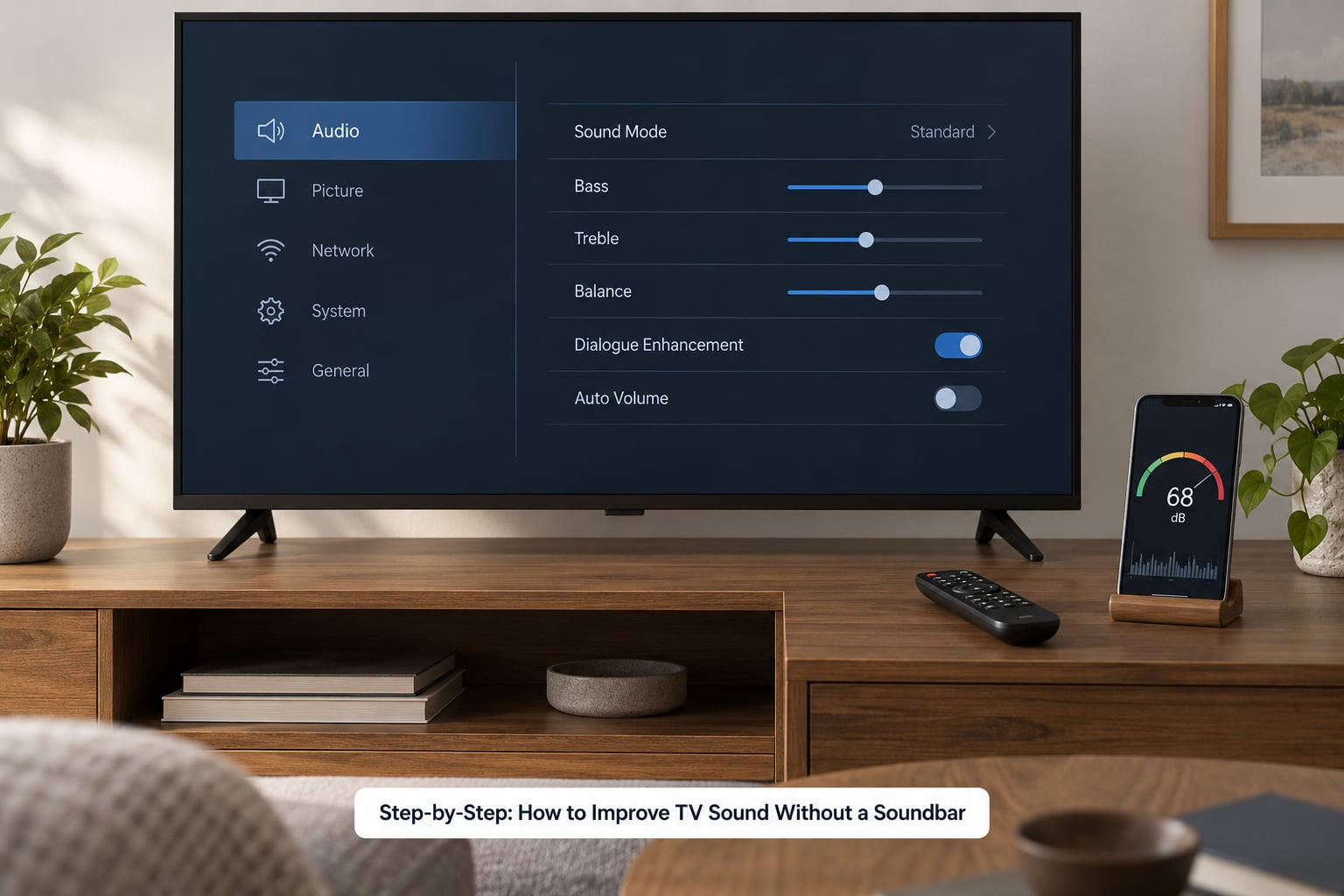
Work through these in order and stop when dialogue is clear at a comfortable volume. Each step tells you how to tell whether it worked.
1. Check the TV’s Basic Audio Output
Start in the audio menu, usually under Sound, Audio, or Sound Out. Confirm the output is set to TV Speaker unless you are deliberately routing audio elsewhere, because a half-finished change here is why some people get silence from their external speakers.
Set the audio language to English if that is what you watch, and check that the output mode says stereo rather than a multichannel or downmix setting that the built-in speakers cannot render. Downmix modes are fine for a home theatre setup and terrible for two small drivers.
How you will know it worked: menu changes to the output take effect immediately on most sets, so you should hear the change before you leave the room. If the set only applies audio settings at power-on, cycle it once.
2. Adjust Dialogue, Treble, and Bass
Open the equalizer, if your TV has one. Many sets do not ship with one exposed, so look under Sound, then Sound Effects or Advanced, then Tone or Equalizer.
Cautious starting points: drop the lowest bass band by two or three steps to clear up a boomy voice, lift the middle band that speech lives in by two steps, and add treble in one-step increments until consonants stop sounding dull. Two steps at a time is plenty. You are looking for speech to sit clearly in front of music and effects, not for the whole mix to get louder.
How you will know it worked: put on something with real dialogue, not a menu or a trailer. If you can follow every word without raising the volume, you are in the right neighbourhood. Then check that music has not become thin and harsh.
3. Fix Volume Mismatches and Channel Problems
If some channels or apps are quiet and others are loud, the cause is usually loudness normalization, where the source applies its own dynamic range compression so quiet scenes do not get whisper-quiet. Look for a setting called Loudness, Volume Normalization, or Dynamic Range Compression and set it to off, or try both ways.
Apps also have their own volume controls that sit on top of the TV’s. If one streaming app is quiet while broadcast TV is fine, adjust inside the app first, then restart the app fully by closing it rather than just backing out to the home screen.
A firmware update is worth doing here too. Audio processing bugs do get patched, and updates also fix the occasional case where an app streams the wrong codec and the TV decodes dialogue badly as a result.
How you will know it worked: switch between a broadcast channel and your quietest app at the same TV volume setting. If they now match, the mismatch is gone.
4. Reduce Echo, Muffled Sound, and Blocked Speakers
Flat hard surfaces reflect sound, and small drivers cannot cope with the reflections that come back at them. That is what makes dialogue sound like it is coming from inside a cardboard box.
Add absorption near the listening position and the screen: a rug that reaches under the front of the seating, curtains that hang rather than fold, a fabric throw on the back of the sofa. Reversible changes only, and none of them require touching the TV itself.
Check the vents and speaker grilles while you are there. Dust and a folded newspaper left against a downward-firing driver will do more damage than any DSP setting can repair.
How you will know it worked: clap once in an empty room and listen to the tail. If the slap-back has mostly gone, the absorption is working.
5. Improve Speaker Placement and Listening Position
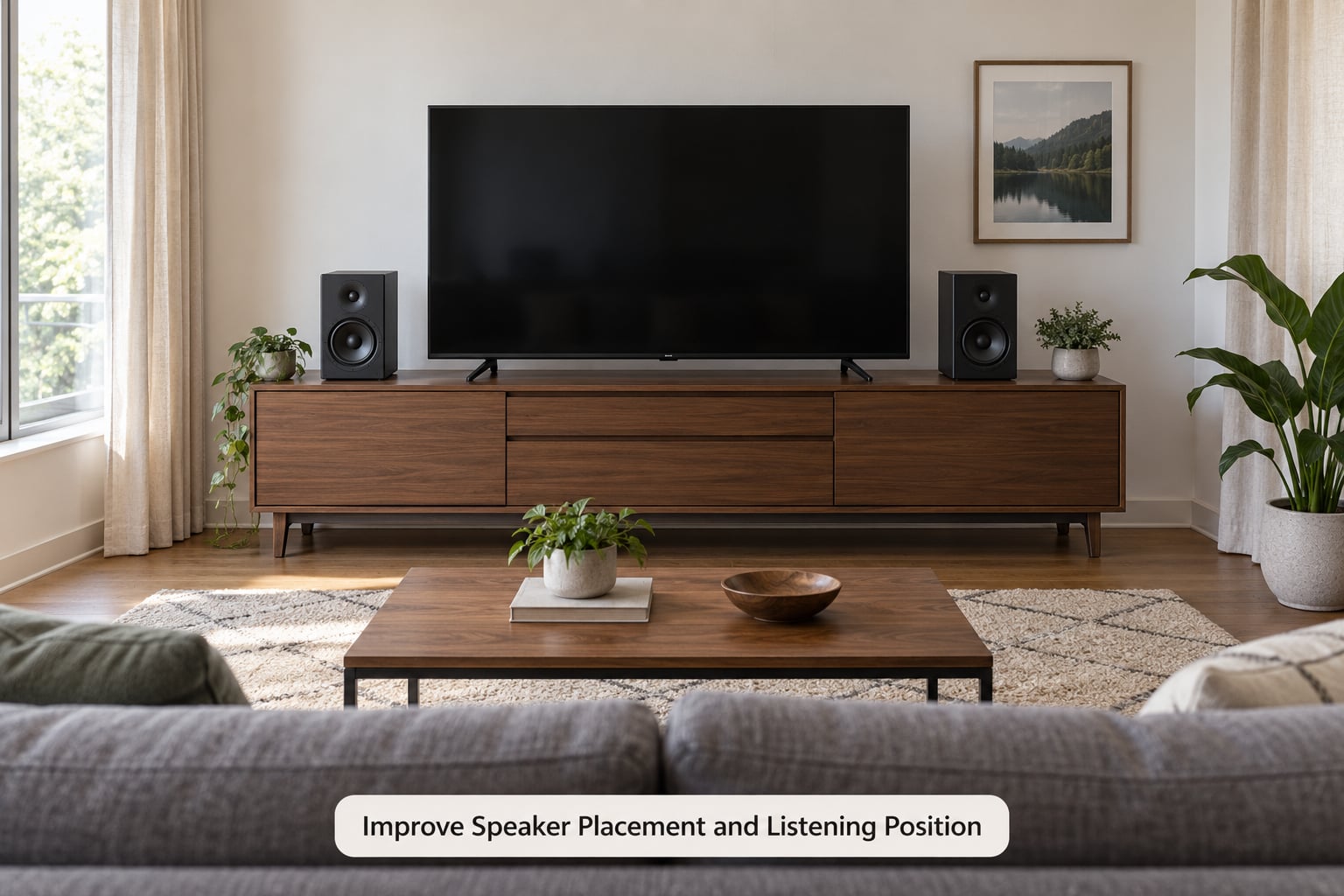
Look at how the TV is installed and pick the matching preset. Wall-mounted sets should be on the wall-mount or mounted preset; sets on a stand or in a cabinet should not be. The preset changes the EQ curve and the spacing assumptions, and a mismatch here is one of the most common causes of a hollow, muffled picture of sound.
Give the speaker openings clearance. If the TV sits inside a cabinet, make sure nothing leans against the grille, and that the cabinet back is not flush against the wall if the drivers fire backwards. Downward-firing sets need a hard surface beneath them to bounce sound up toward you, so a cloth or a deep cushion directly under a downward-firing TV makes the sound worse rather than better.
Sitting directly in front of the screen is ideal. Off to one side, you lose the stereo separation, and on a narrow-bezel set the speakers are only a few inches apart, so distance matters more than people expect. Moving your chair a foot or two back often clears up a complaint that no menu setting could touch.
How you will know it worked: if dialogue gains clarity as you move toward the centre of the screen, placement was part of the problem.
6. Try a Simple External-Speaker Upgrade
This is where many people stop needing to buy anything, because they already own the gear. If you have reached this point working through how to improve TV sound without a soundbar, the settings are already right.
- Optical audio out is the best all-round digital output. It carries clean 2.0 PCM and is found on most sets from the last decade.
- HDMI ARC or eARC returns digital audio over the same cable as the picture, which means one cable for both.
- 3.5mm headphone out gives an analog signal that works with most powered bookshelf speakers and PC speaker pairs. Newer sets increasingly drop it.
- RCA stereo out is the older equivalent, red and white phono plugs.
- An HDMI audio extractor solves TVs with no legacy output at all. It taps the HDMI signal and gives you a 3.5mm or RCA socket.
On compatibility, check the TV’s output format setting and set it to PCM where the option exists, since many external speakers cannot decode a Dolby bitstream.
Bluetooth speakers are the cheapest route, but they add delay. Lip sync is visible on most content, and the TV’s audio delay or audio sync slider will usually fix it by delaying the picture instead. Note that the same correction adds input lag if you also game.
On spending tiers: free settings first, then existing speakers, then a pair of powered bookshelf speakers, which is where most people stop. A small subwoofer plugged into a subwoofer out or speaker output is the step after that, and it fixes bass without touching the dialogue problem.
How you will know it worked: dialogue stops fighting the sound effects, because a wider speaker or a centre-channel-style placement puts voices in the middle rather than smeared across the room.
Common Mistakes
Maxing every equalizer band. Raising bass, mids and treble together does not make sound better, it makes it worse in a way that is hard to back out of. Change one band at a time, by two steps.
Leaving Eco Mode on. Energy saving modes quietly cap the amplifier on many sets, so the volume bar stops feeling like it does anything above the middle. Turn it off and compare.
Running the volume to 100 on TV speakers. Small amplifiers driving tiny drivers into a cabinet will clip, and clipping is what makes voices sound scratchy and thin. If turning it up makes it worse rather than louder, back it down.
Blocking the drivers. A wall-mounted downward-firing TV with a shelf or cabinet top directly under it will sound dull. A soft throw under a downward-firing TV is the same mistake in a different form.
Assuming Bluetooth is free of delay. It is not. Correct it with the sync slider, or use a wired output and avoid the problem.
Changing five settings at once. Then you cannot tell which one helped, and you may leave three working improvements switched off. Change one thing, listen to the same content for two minutes, then move on.
If you only have time for three things: turn off Eco Mode, set the correct sound mode and dialogue enhancement, then match the install preset to how the TV is mounted. Those three take five minutes and resolve a surprising share of the complaints I hear about.
Frequently Asked Questions
Why does my TV sound quiet even when the volume is turned up?
Three causes cover most cases. Eco Mode or energy saving often caps the amplifier, so the volume bar stops responding above the middle. Loudness normalization on the streaming app or channel is compressing quiet scenes. Or the volume is high on the TV and low in the app. Check Eco Mode first, then compare broadcast TV and a streaming app at the same setting to see where the drop happens.
Should I use dialogue mode or night mode when watching TV?
They solve different problems. Dialogue mode, often called Clear Voice or Adaptive Sound, lifts speech frequencies and helps when you cannot make out words over music and effects. Night mode compresses the dynamic range so quiet parts come up and loud parts come down, which helps late-night viewing but can sound squashed and dull. Use dialogue mode for most watching and night mode only when neighbours or bedtime are the constraint.
Does Bluetooth add noticeable delay when connecting speakers to a TV?
It usually does, often enough to see lip sync slip on dialogue. Most TVs have an audio delay, lip sync or audio sync setting that delays the picture to match, and that fixes it. The catch is that this correction also adds input lag, which matters if you game. For film and news watching the correction is invisible; for competitive gaming, use a wired output instead.
Is a soundbar the only way to get better TV speakers?
No. A soundbar is one shape of external speaker, not a category. Powered bookshelf speakers, a compact stereo system, a pair of good computer speakers with their own amplifier, or smart speakers connected over HDMI ARC all give you better dialogue than TV speakers. A soundbar wins on simplicity and on a single box that fits under a screen. Separate speakers win on stereo separation, which is what makes speech sit clearly in the middle.
What should I do if dialogue is clear but music and effects sound flat?
You have a frequency balance problem rather than a speech problem. Flat music usually means the treble is rolled off or the surround and virtual sound modes are processing the whole mix. Turn off virtual surround, check that the sound mode is set to standard or music rather than a heavily processed cinema mode, then raise the treble in small steps. Test with music, not dialogue, so you are not correcting the wrong frequency range.
Conclusion: Start With the Free Fixes
If you do nothing else, verify the audio output is set correctly, reset the sound effects by clearing Eco Mode and choosing a plain standard sound mode, and adjust the equalizer to favour speech. That sequence alone fixes a large share of quiet or muffled TV complaints, and it costs nothing but half an hour.
Spend money only after that. Working through how to improve TV sound without a soundbar in the right order matters more than what you buy: if dialogue is still buried once the settings are right, placement is the next suspect, particularly a wall-mount preset mismatch or a downward-firing TV sitting on something soft. Once placement is squared away and the built-in speakers still fall short, external speakers are the answer, and speakers you already own will cover more cases than most people expect.