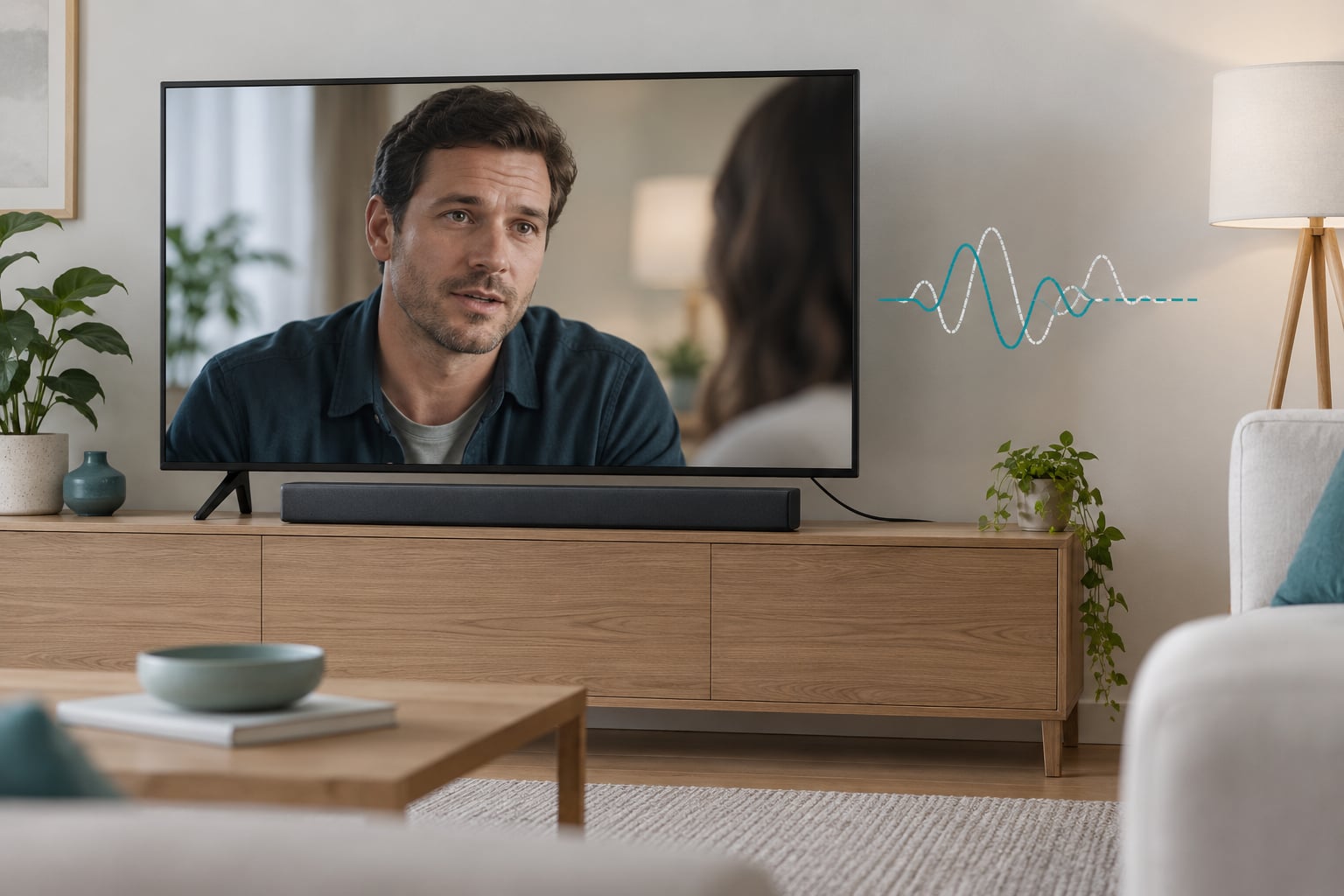
If you have ever wondered why does my soundbar lag behind the picture, the short answer is that video and audio travel through separate processing paths, and one of them gets held back. TV picture processing, audio re-encoding, Bluetooth buffering, a wrong lip sync setting or a source device that is out of step are the usual suspects. Most of it is fixable in about ten minutes with settings you already have in your remote.
This guide walks through the causes first, then a diagnostic sequence to find which device is at fault, then ordered fixes. The order matters: cheap tests before expensive ones, and the narrowest cause before the widest.
Table of Contents
- Why Does My Soundbar Lag Behind the Picture?
- What Causes a Soundbar to Lag Behind the Picture?
- Bluetooth adds codec and buffering delay
- The TV is processing the picture, not the sound
- The TV decodes and re-encodes audio before it leaves
- The soundbar’s own processing adds a buffer
- The connection or the source is at fault
- How to Tell Whether the Problem Is Bluetooth, the TV, or the Soundbar
- How to Fix Audio Delay on a Soundbar
- Step 1: Power cycle everything in the right order
- Step 2: Reseat or replace the HDMI cable
- Step 3: Turn off picture and sound processing
- Step 4: Move the delay slider in the right direction
- Step 5: Test PCM before Bitstream
- Step 6: Move off Bluetooth if you can
- Step 7: Update firmware, then reset sound settings
- Which TV and Soundbar Settings Should You Check First?
- How to Fix Delay When Using Bluetooth, HDMI ARC, or Optical Audio
- Why Does Lip Sync Change Between Streaming Apps, Games, and Live TV?
- When Should You Update Firmware, Reset the Devices, or Contact Support?
- Frequently Asked Questions
- Should I increase or decrease my audio delay?
- Does HDMI ARC cause audio delay?
- Why is my audio delayed on a Bluetooth soundbar?
- Why is only one app or one channel out of sync?
- What should I set my audio delay at in milliseconds?
- Can a new HDMI cable fix soundbar lip sync?
- What to Do First
Why Does My Soundbar Lag Behind the Picture?
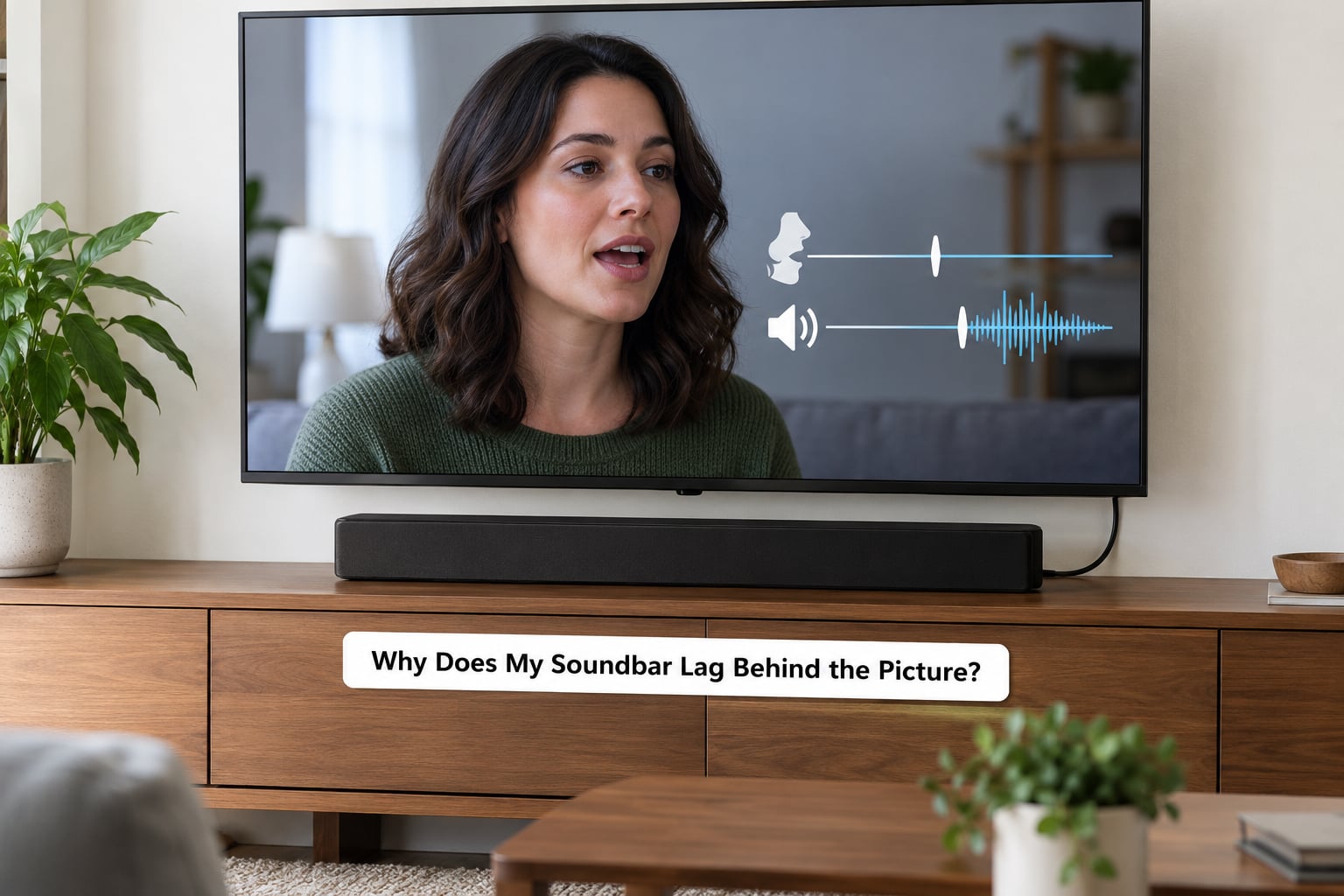
A soundbar lags behind the picture because the audio signal takes a longer path than the video signal. The TV stretches video to run upscaling, motion smoothing or a game refresh mode, while audio runs straight through. Then the soundbar decodes and re-renders what arrives, adding a buffer of its own. The result is dialogue landing after the mouth has already moved.
Humans notice audio that is out of step by roughly 40 milliseconds or more, and dialogue makes the mistake obvious in a way ambient sound does not. That is why lip sync shows up as the top soundbar complaint even when the sound quality is excellent.
One thing worth sorting out early: is the delay constant, or does it come and go? A constant offset on every source usually points at a setting or the connection between the TV and the soundbar. Delay that only shows up on one app, one channel or one console points somewhere else entirely, usually at that source device or at the broadcaster.
You will also want to know which direction the error goes. If the sound is late, the picture is early. If the sound is early, the picture is late. Almost every delay control on a TV only slows audio down, so those two problems need opposite fixes, and getting this backwards is the single most common reason people cannot solve it.
What Causes a Soundbar to Lag Behind the Picture?
Bluetooth adds codec and buffering delay
Bluetooth compresses audio into a small packet stream, and both the phone or TV encoder and the soundbar decoder keep a buffer to make that stream smooth. On a typical setup that adds tens of milliseconds before anything else is counted. This is also why a lip sync control is often missing entirely over Bluetooth on certain models.
The TV is processing the picture, not the sound
Motion smoothing, de-judder, film mode and upscaling all delay video on purpose. The audio track is usually left alone, so it arrives early by comparison. A soundbar added later makes this obvious, because it exposes a mismatch the TV’s own speakers never revealed.
The TV decodes and re-encodes audio before it leaves
When audio passes through a TV to reach a soundbar, the TV may decode the incoming stream, convert it and encode it again for the soundbar. Every one of those steps costs time. Forcing the output to PCM skips most of that conversion, which is why it is such a common first test.
The soundbar’s own processing adds a buffer
Dialogue enhancement, night mode, volume levelling, virtual surround and room correction all process the signal. Soundbars also apply their own lip sync adjustment, sometimes badly. Turning these off is a quick way to find out whether the soundbar itself is the delay.
The connection or the source is at fault
A loose HDMI cable, a failed ARC handshake, a long run through an adapter or a splitter can all add time or pass through a broken stream. On the source side, cable and satellite boxes and broadcast feeds commonly deliver audio late, and streaming devices add frame-matching of their own.
How to Tell Whether the Problem Is Bluetooth, the TV, or the Soundbar
Start with the fastest test there is: mute the soundbar and listen to the same content through the TV’s own speakers. If the TV speakers are in sync, the delay was introduced somewhere after the TV’s speakers, which narrows it to the soundbar, the cable or the connection type. If the TV speakers are also out of step, the problem is upstream in the source or in the TV’s processing.
Next, change the connection type for the same content. Play the identical scene over HDMI and then over Bluetooth. If HDMI is tight and Bluetooth trails, the wireless path is the cause, and you have already found your fix.
Then isolate by source. Play something from the TV’s own apps, then from a streaming box, then from a cable or satellite box, then from a console if you have one attached. Delay on only one of those is that device’s fault, and no global TV setting will correct it properly.
There is one more test worth knowing. Change the signal path so the source plugs into the soundbar’s HDMI input and the soundbar passes video on to the TV, instead of running source to TV to soundbar. If the delay disappears, the TV’s audio output stage was adding it. Many people never try this because it means replugging two cables.
Note down what you find as you go. Whether the delay is early or late, and whether it follows one source or everything, saves a lot of guessing once you start changing menus.
How to Fix Audio Delay on a Soundbar
Work through these in order. Stop as soon as the sync is back, because each later step is more disruptive and less certain to help.
Step 1: Power cycle everything in the right order
Turn off the TV, the soundbar, the source device and any streaming box at the wall, not just with the remote. Wait thirty seconds, then power the TV on first, give it a few seconds to establish the ARC link, then the source device, then the soundbar. Bad handshakes and stuck decoder states are one of the most common causes and they clear with a proper cold cycle.
Step 2: Reseat or replace the HDMI cable
Push both ends in firmly at the TV and at the soundbar, then check that you are on the correct eARC or ARC port. Many TVs label only one port for return audio, and plugging into a plain HDMI port means no sound or a fallback path with delay. A certified Ultra High Speed cable is a reasonable replacement if the existing one is old, damaged or unusually long.
Step 3: Turn off picture and sound processing
Switch the TV out of movie, game or dynamic picture modes, and turn off motion smoothing, auto film mode and any enhanced upscaling. On the soundbar, switch off dialogue enhancement, night mode and virtual surround, and pick the plainest sound mode it has. Every processing stage you remove is one less buffer between the frame and the sound.
Step 4: Move the delay slider in the right direction
Open the TV’s audio delay setting and nudge it in 10 to 20 millisecond steps while watching a scene with clear mouth movement. If the sound is late, raise the audio delay until it catches the picture. If the sound is early and no slider can make audio arrive sooner, that is the more common of the two problems to hit, because most TVs only delay audio, never speed it up.
Step 5: Test PCM before Bitstream
In the TV’s audio output settings, change the format from Bitstream or pass-through to PCM, sometimes labelled LPCM or PCM-Stereo. Samsung users find it under Sound and on TCL sets it sits under Audio Setting as S/PDIF and ARC set to PCM-Stereo. PCM removes the decode and re-encode stage, so if the delay came from format conversion it will shrink or vanish. It costs you Atmos on some setups, so switch back after you test.
Step 6: Move off Bluetooth if you can
If your soundbar and TV both have an HDMI eARC or ARC port, use it. Bluetooth adds codec and buffering delay that no setting reliably cancels, and on several brands the lip sync control is simply greyed out while a Bluetooth source is selected. This is the fix most often worth making.
Step 7: Update firmware, then reset sound settings
Update the TV, the soundbar and any streaming device, then reset the sound settings on the TV after the update lands. Updates fix a lot, and occasionally introduce a regression, so if sync was fine last month and is off now, read the section on firmware below before you buy anything.
Which TV and Soundbar Settings Should You Check First?
Names change between brands and between model years, but the function is usually there. This is what each setting does and what you should expect when you change it.
| Setting | Where it usually lives | What it does | Expected result |
|---|---|---|---|
| A/V Sync or audio delay | TV sound settings, sometimes under expert or advanced options | Adds or subtracts milliseconds on the audio output | Delay disappears within a second or two of the right value |
| Digital Output Audio Delay | Samsung: Sound andgt; Expert Settings andgt; Digital Output Audio Delay | Same job, named differently | Samsung TVs adjust audio in a defined range; Sony sets are commonly quoted as 0 to 250 ms |
| Match Screen and Sound | LG: Sound andgt; Sound Out andgt; Optical andgt; Sound Sync | LG’s lip sync control | Works, but only once an external speaker output is chosen rather than TV speaker |
| Digital audio format | TV sound settings, labelled PCM, Bitstream or pass-through | Chooses whether the TV decodes audio or sends it raw | PCM is the fastest test; Bitstream restores Atmos |
| Game mode or game refresh rate | TV picture and sound settings, sometimes automatic | Optimises response for consoles | Usually fixes lag in games, can add picture delay elsewhere |
| Motion smoothing and film mode | TV picture settings | Stretches the video frame timeline | Turning it off pulls the picture back toward the audio |
| Audio sync on the soundbar | Soundbar app or its own settings menu | Applies the manufacturer’s own correction | Useful when the TV has no control; on Bluetooth inputs it is often missing |
One trap catches people repeatedly. A sync control that looks unavailable is usually greyed out because no delay is needed yet, or because the wrong output is selected. On LG sets, Match Screen and Sound stays unavailable until you switch the sound output away from TV speaker. On some Samsung models the audio sync option does not appear for Bluetooth or USB sources at all.
If you prefer not to hunt through menus, the soundbar’s own app usually has a sync or lip match control that applies the same correction from your phone.
How to Fix Delay When Using Bluetooth, HDMI ARC, or Optical Audio
Each connection type fails in its own way, so match the fix to the cable you are actually using.
| Connection | Typical delay behaviour | Best fix | Tradeoff |
|---|---|---|---|
| HDMI eARC | Lowest delay, carries Atmos and multichannel audio | Set output format to PCM if delay persists, then use the TV delay slider | Needs a matching port on both devices |
| HDMI ARC | Low delay, some bandwidth limits on audio formats | Same as eARC | Some codecs unavailable |
| Optical | Small added delay, no audio return channel | Use the TV audio delay slider; optical cannot be adjusted by the soundbar | No Atmos from a TV source |
| Bluetooth | Noticeably late, and the offset varies with signal quality | Move to HDMI or optical where possible | Wireless convenience only |
With optical, the TV still decodes the audio and the soundbar still has to be told what to do with it, so a small delay can appear with no cable fault to blame. The TV delay slider is the fix there, because optical sends audio one way and gives the soundbar no way to correct it.
Bluetooth deserves its own note, because the advice online contradicts itself. Some owners report that switching from HDMI to Bluetooth reduced the lag they could feel, and that forcing LPCM gave the lowest delay of anything they tried on an LG C1 OLED. That sounds backwards, and it usually reflects a TV adding delay of its own over HDMI rather than Bluetooth being fast. It is worth a five-minute test on your own gear rather than taking anyone’s word for it.
Switching from Bluetooth to HDMI or optical is the most reliable answer when the delay is consistent and larger than roughly 100 milliseconds. If a cable box cannot route audio over HDMI, optical is a solid fallback.
Why Does Lip Sync Change Between Streaming Apps, Games, and Live TV?
Different sources run through different processing, so the delay is rarely the same everywhere. A streaming app may decode and buffer video to match a frame rate, a console may be matched by automatic game mode, and a broadcast feed adds its own lag for the same audio across every device in your home.
Live TV and cable are the case most guides skip. Broadcasters delay the audio in the feed itself to keep it consistent across regions, so every connected device shows the same offset. If the delay appears on your TV’s own apps but not on a channel, or the reverse, you have found the answer without touching a single menu.
Games are the other easy win. Console HDMI source recognises usually switches the TV into a low-latency picture mode automatically, and many sets then hold the audio steady to match. If lag appears only during play, check that automatic mode is on and that nothing else in the TV’s game menu is adding processing.
High-motion scenes fool the eye as well as the ear. Fast panning and sports footage mask a delay that dialogue reveals, so test with a scene where someone is speaking plainly and the frame is static. For streaming sources, matching the frame rate to the source removes one of the reasons for video buffering, which is the main thing pulling the picture ahead of the audio.
When Should You Update Firmware, Reset the Devices, or Contact Support?
If sync was perfect and a change broke it, start with firmware. Owners of a Sony Bravia A80J feeding a Sonos Playbase over optical reported a 1 to 5 millisecond delay appearing after an update, and toggling PCM, audio sync, pass-through, TV speaker selection and wireless audio sync all failed to reverse it. Small regressions like that are real, and being told they are within normal tolerance does not help if you notice them.
What does help in that situation is a factory reset of the soundbar and the TV sound settings, followed by a deliberate re-tune of the delay slider from zero. Resetting puts the correction back under your control instead of the manufacturer’s, even if the drift comes back later.
Replace the cable when it is damaged, when it runs more than about 15 metres without an active or fibre model, or when it passes through adapters and splitters. One myth to drop: a more expensive HDMI cable will not remove processing delay. Quality cables fix dropouts, handshakes and 4K and HDR transmission, not the milliseconds a TV’s processor adds. Spend on connection type first.
Contact support when the delay is small, constant and survives a factory reset, or when it follows a firmware update with no menu that changes it. Before you write, gather the TV make and model, the soundbar make and model, the connection type and port, the audio format you have selected, the delay value you have dialled in, and the date of the last update on each device. Manufacturers can only act on what you can describe precisely, and that same list saves time on a phone call.
Frequently Asked Questions
Should I increase or decrease my audio delay?
If the sound arrives after the mouth has already moved, the audio is late, so increase the audio delay until it catches the picture. Most TVs only add delay and never subtract it, so the reverse case is harder. When sound is early and no slider makes it sooner, you have to slow the picture down instead, usually by switching off motion smoothing or using a low-latency picture mode.
Does HDMI ARC cause audio delay?
ARC itself is fast and is rarely the culprit on its own. The delay usually comes from the TV decoding and re-encoding the audio before passing it to the soundbar, or from picture processing on the TV. Setting the output format to PCM removes the conversion step and is the fastest way to test it. If delay persists over HDMI, try optical or check the TV delay slider.
Why is my audio delayed on a Bluetooth soundbar?
Bluetooth compresses audio into small packets and buffers at both ends to keep the stream smooth, which adds tens of milliseconds before anything else is counted. Because the offset varies with signal quality, it can drift during a film. On several brands the lip sync control is greyed out while Bluetooth is the active source, so the practical fix is moving to HDMI eARC, HDMI ARC or optical.
Why is only one app or one channel out of sync?
Because the delay is being added by that source rather than by your TV or soundbar. Broadcast feeds and cable boxes commonly delay audio in the stream itself, and streaming apps buffer video to match frame rates. Switch between the TV’s own apps, a streaming box and a channel to find the odd one out. No global sync setting will fix a single source properly, so adjust that device instead.
What should I set my audio delay at in milliseconds?
Start at zero and work up in 10 to 20 millisecond steps while watching a scene with clear mouth movement. Most people land between 40 and 120 milliseconds once TV and soundbar processing is included, and you will feel the last few steps less clearly than the first. Sony sets are commonly quoted as adjustable from 0 to 250 ms, and Google Cast devices correct group delay across a narrower range.
Can a new HDMI cable fix soundbar lip sync?
Only in specific situations. A damaged cable, one that is too long without an active model, or one running through adapters and splitters can cause handshake problems that present as delay, and replacing it is worthwhile there. A pricely certified cable will not remove the milliseconds a TV or soundbar’s processor adds. Fix the processing and the connection type before you spend on the cable.
What to Do First
Start with the TV speakers test and the per-source isolation check. They take five minutes together and tell you whether you are dealing with your TV, your soundbar or one particular source, which everything else depends on.
Then power cycle properly, switch off picture and sound processing, and try PCM. For most setups that is where the delay goes away. If it survives all of that and arrived after a firmware update, reset the sound settings and dial the delay in by hand.